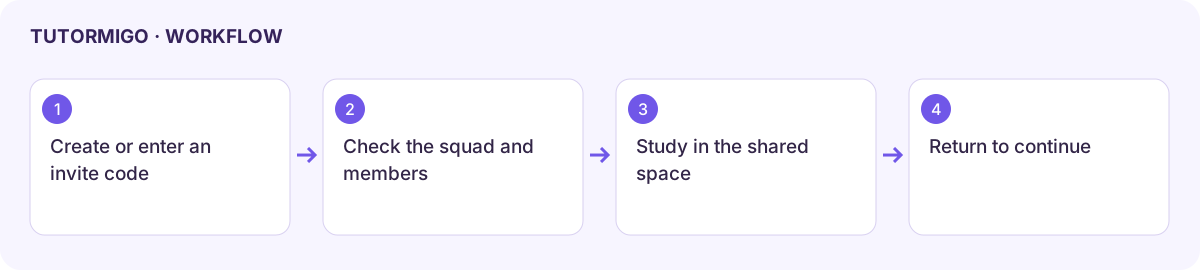
Create or join a Study Squad
Study Squads provide a shared learning space with members and tutor support. Open Study Squads from the student navigation when the feature is enabled for your account.
Create a squad
Section titled “Create a squad”- Choose the create action to open Create a Study Squad.
- Enter a clear Squad name, such as Fractions Crew.
- Select an optional Subject and choose How should the Tutor help? from the available modes.
- Choose an optional emoji and colour, then create the squad.
- Check the squad title and members in the new workspace before posting your learning question.
Join and work together
Section titled “Join and work together”Use Join a Study Squad and enter the invite code shared with you. Confirm the squad after joining. Open Invite friends to see the supported invite method; share the code only with the intended study group.
Use Show members to understand who can participate. Write a focused question, read the shared discussion, and build on others’ reasoning. Use the available voice panel only after checking microphone access and the active group. Do not assume a squad conversation is private to you.
Return and troubleshoot
Section titled “Return and troubleshoot”Reopen the squad from the list to continue. If a code fails, confirm its spelling and current validity with the owner. If a squad or discussion does not load, refresh once and retain the error; do not repeatedly create duplicate squads.
Membership and moderation controls vary by role and release. Use only the controls displayed for your membership, and check the effect of leaving or changing members before acting.
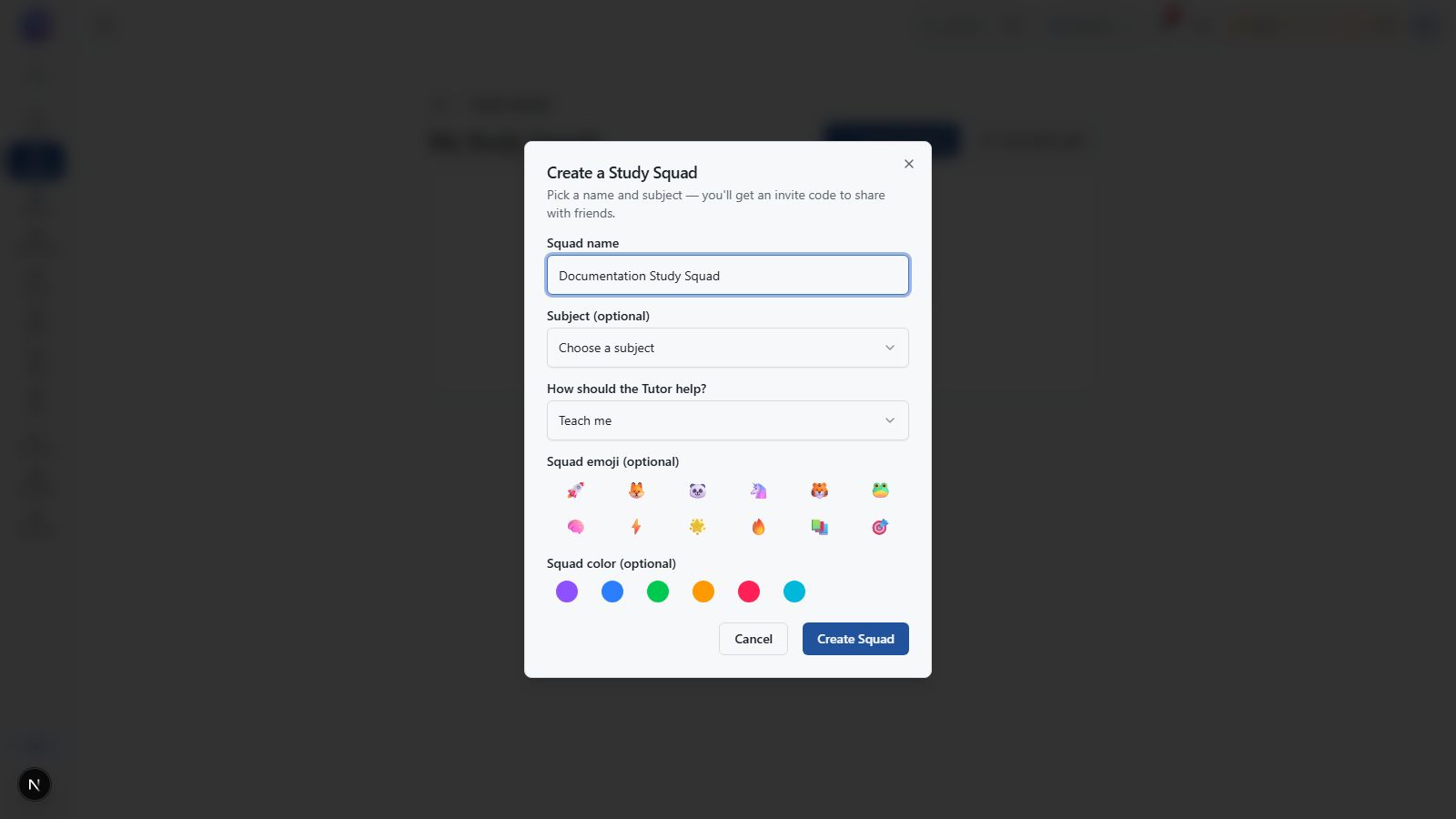
Study Squad creation with name, subject, teaching mode, and appearance.
Workflow at a glance
Section titled “Workflow at a glance”