Create and replay an audio lesson
Turn a focused topic into a lesson you can revisit. Open Tools → Audio Lessons. Generation uses your account allowance.
Watch the tutorial
Section titled “Watch the tutorial”Read the walkthrough transcript
1. Open Audio Lessons
Want to learn by listening? Open Audio Lessons from Study Tools. Start with one focused topic, so the explanation stays useful and easy to follow.
2. Describe the lesson
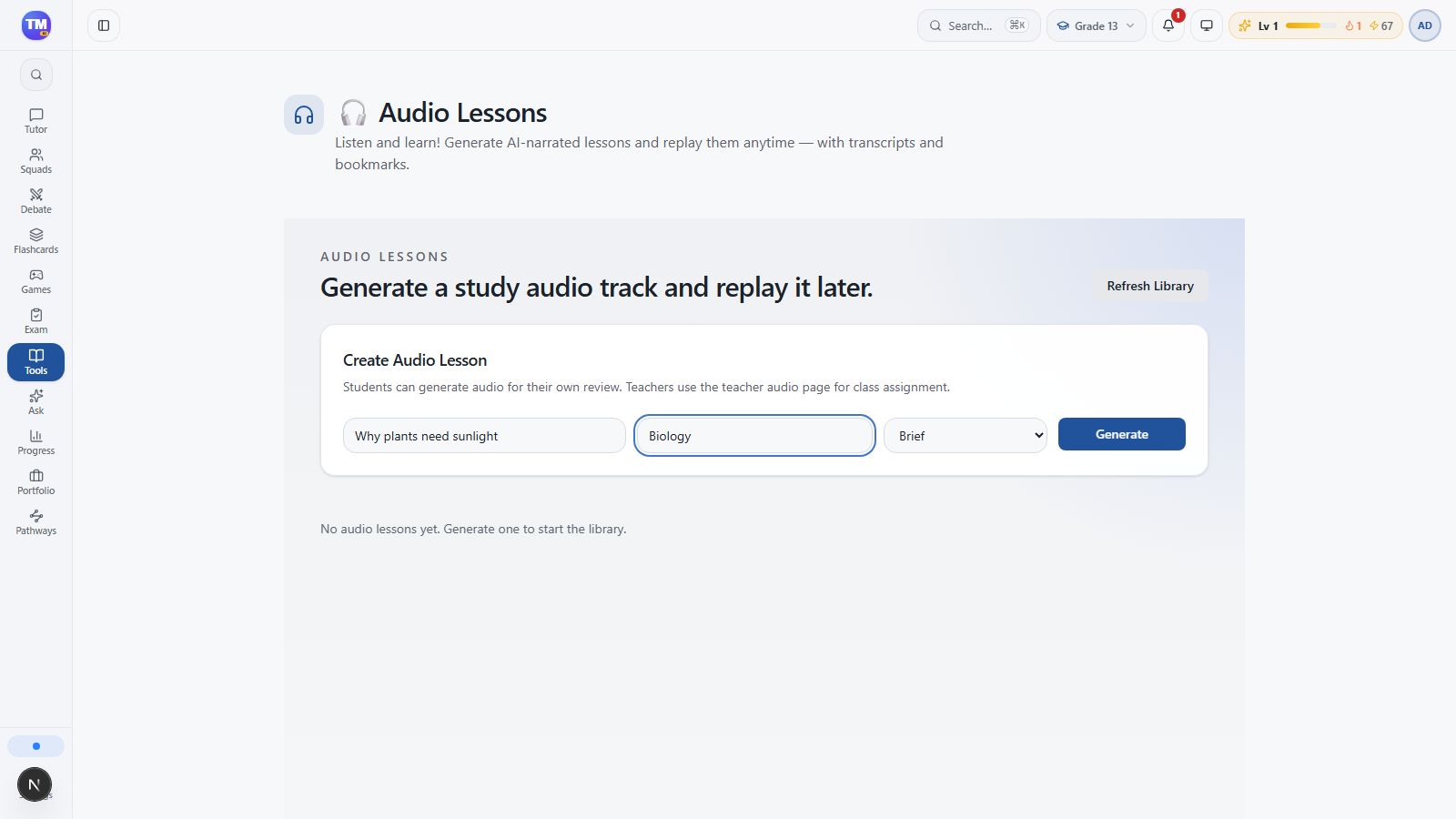
Let's use why plants need sunlight. Add Biology as the subject, then choose a format. Brief gives you a quick overview. Deep Dive, Debate, and Story Mode offer different ways to explore the same idea.
3. Generate and check the library
Choose Generate and give the app time to prepare the lesson. The library is where you'll find your available tracks. If generation is still running, avoid sending the same request again.
4. Build an active listening habit
When a lesson is ready, open it and use its playback controls. Pause after a key idea, say it in your own words, and use the transcript to check a term. Listening becomes much more useful when you stop and think.
Download video · Download captions
Describe the lesson
Section titled “Describe the lesson”- Enter Why plants need sunlight as the Topic.
- Enter Biology as the Subject.
- Choose Brief for this example.
| Format | Use it for |
|---|---|
| Brief | A concise overview |
| Deep Dive | A fuller explanation |
| Debate | Different viewpoints |
| Story Mode | Learning through a narrative |
Generate and find the lesson
Section titled “Generate and find the lesson”Select Generate once and wait. The completed lesson appears in the library with its title, subject, format, and completion status. Use Refresh Library if you need to check for an update.
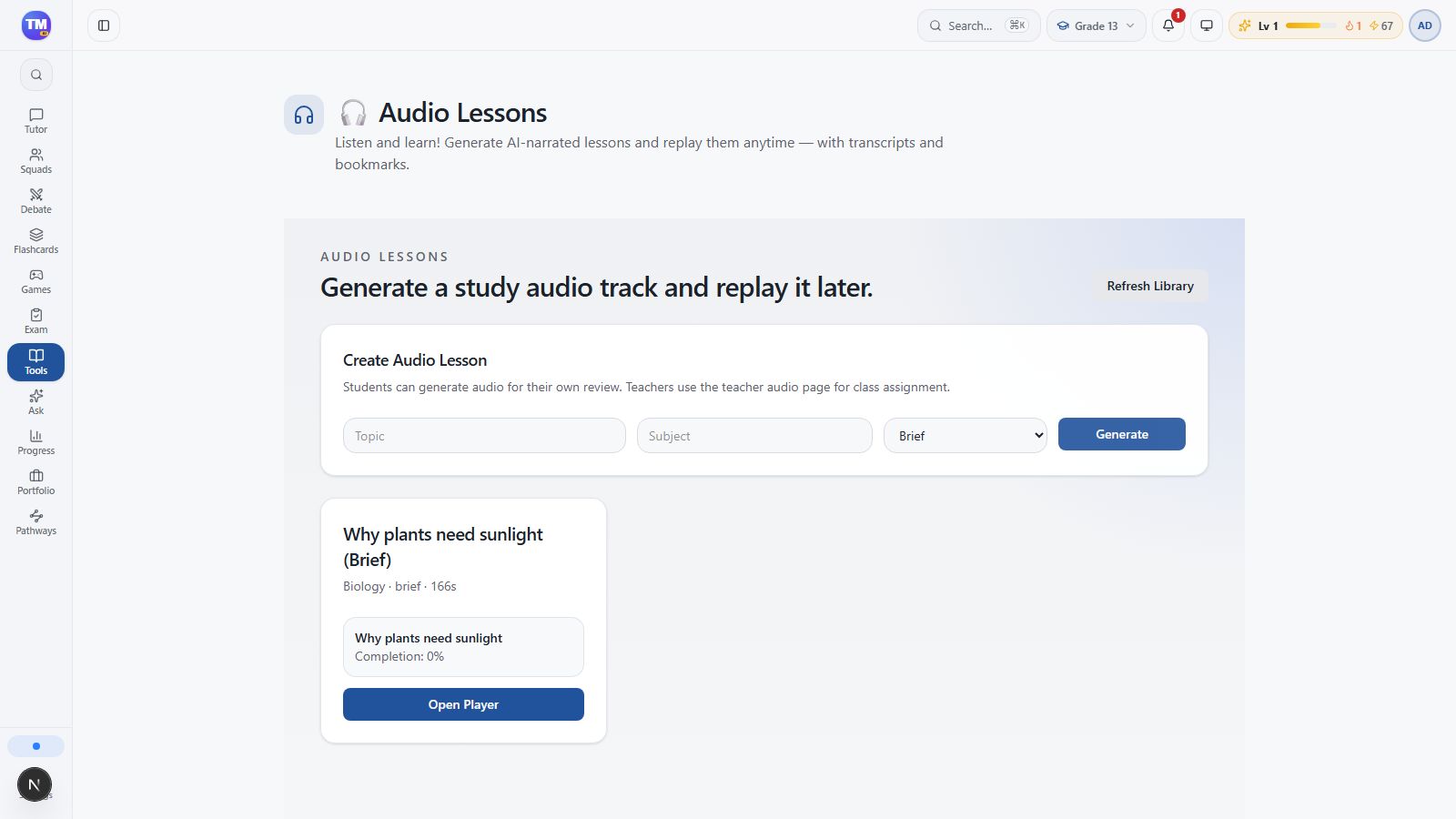
Select Open Player. You may briefly see Rendering… while the player is prepared. Avoid submitting the topic again during this wait.
Play, pause, and bookmark
Section titled “Play, pause, and bookmark”Use the audio controls to start and pause playback. Select a speed such as 1.25x if comfortable. Enter a Bookmark label, then select Save Bookmark to mark the current position. Sync Progress updates your listening progress.
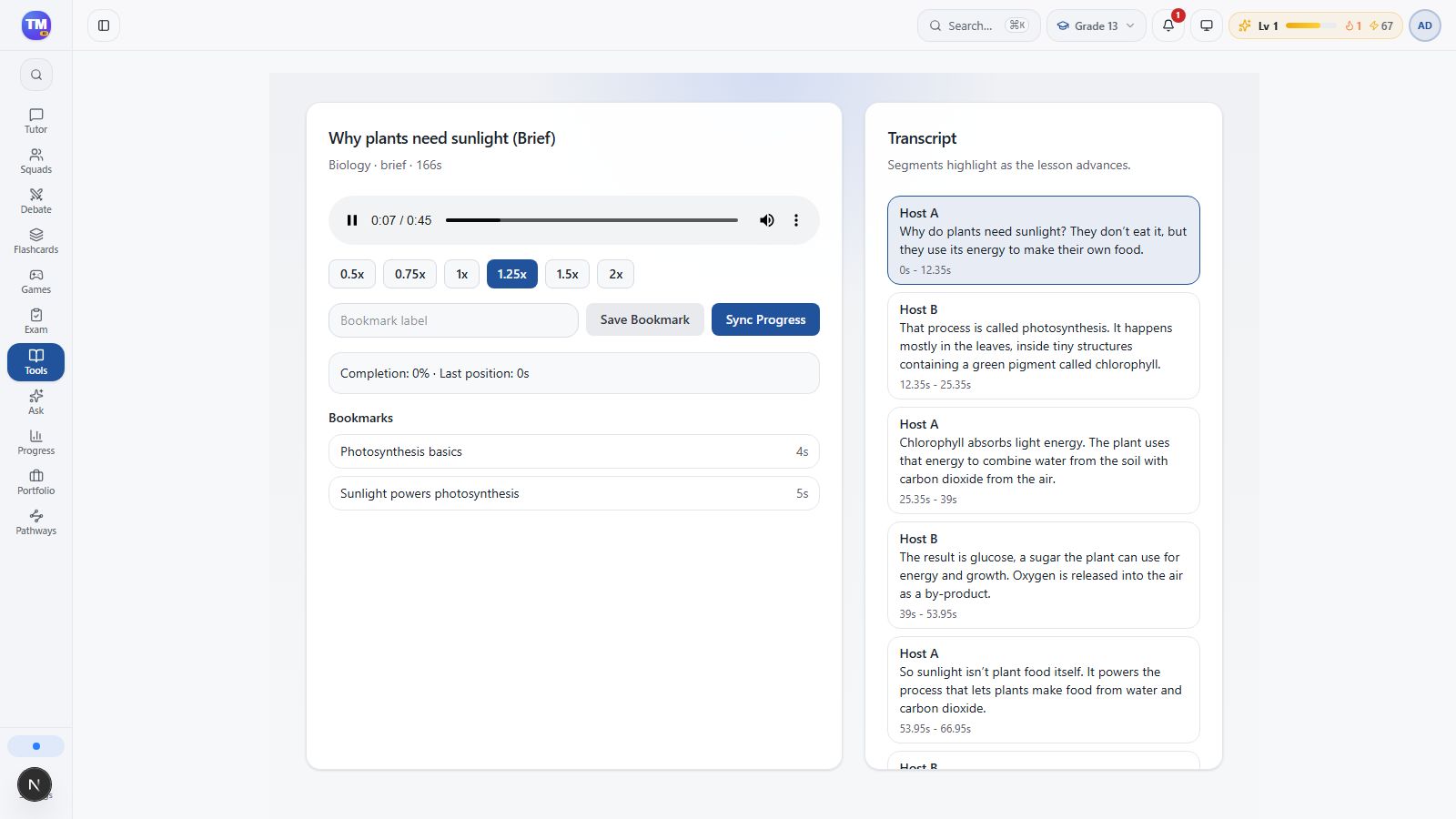
The transcript highlights segments as the lesson advances. Pause after a key idea, explain it in your own words, and check a term in the transcript. Confirm that you can hear spoken audio; a loaded player alone does not confirm successful narration. If playback or timing seems wrong, report the lesson title and the displayed status.
Next: Organize the ideas in a map.