Create drafts, worksheets, and rubric feedback
Authoring Studio combines draft inventory, standards coverage, worksheet generation, and rubric grading. Review generated material before assigning it.
Create and publish a draft
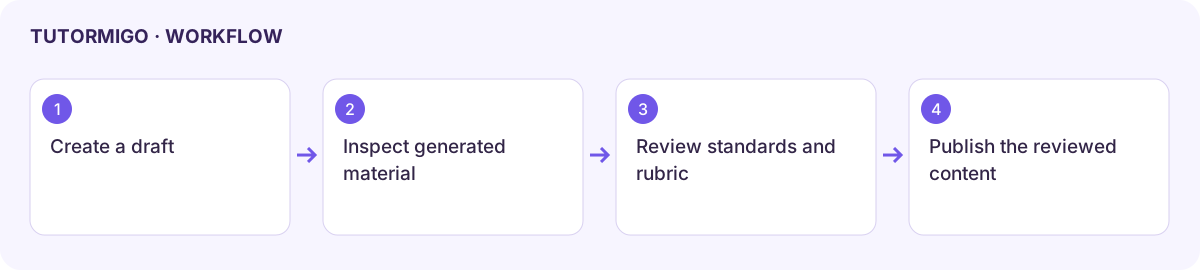
Section titled “Create and publish a draft”- Open Authoring Studio and use Create Draft.
- Enter the Title and Description required by the current form.
- Create the draft and find it in Content Inventory.
- Inspect the available content and editing controls. The reviewed basic creation form does not provide a complete lesson-body editor in this screen.
- Use the inventory’s Publish action only after the draft and intended audience have been reviewed. Check its updated status.
Generate a worksheet or rubric score
Section titled “Generate a worksheet or rubric score”Use Worksheet Generator and inspect the controls and input offered before choosing Generate Worksheet. Review the returned questions, instructions, level, and answer material. Use Rubric Grading and Run Rubric Score to inspect the offered feedback against the actual response and rubric.
The reviewed basic screen uses predefined generation inputs rather than a full configurable worksheet/rubric editor. Do not assume a hidden grade, subject, or rubric selection exists. A generated preview must be checked before becoming an assignment or a final grade.
Review coverage
Section titled “Review coverage”Read Standards Coverage alongside the published inventory. No published standards mapped yet means no coverage data is available, not that every standard has been met. Refresh after publishing or updating material and inspect the mappings relevant to your lesson.
Next: Knowledge Base and Classroom Control.
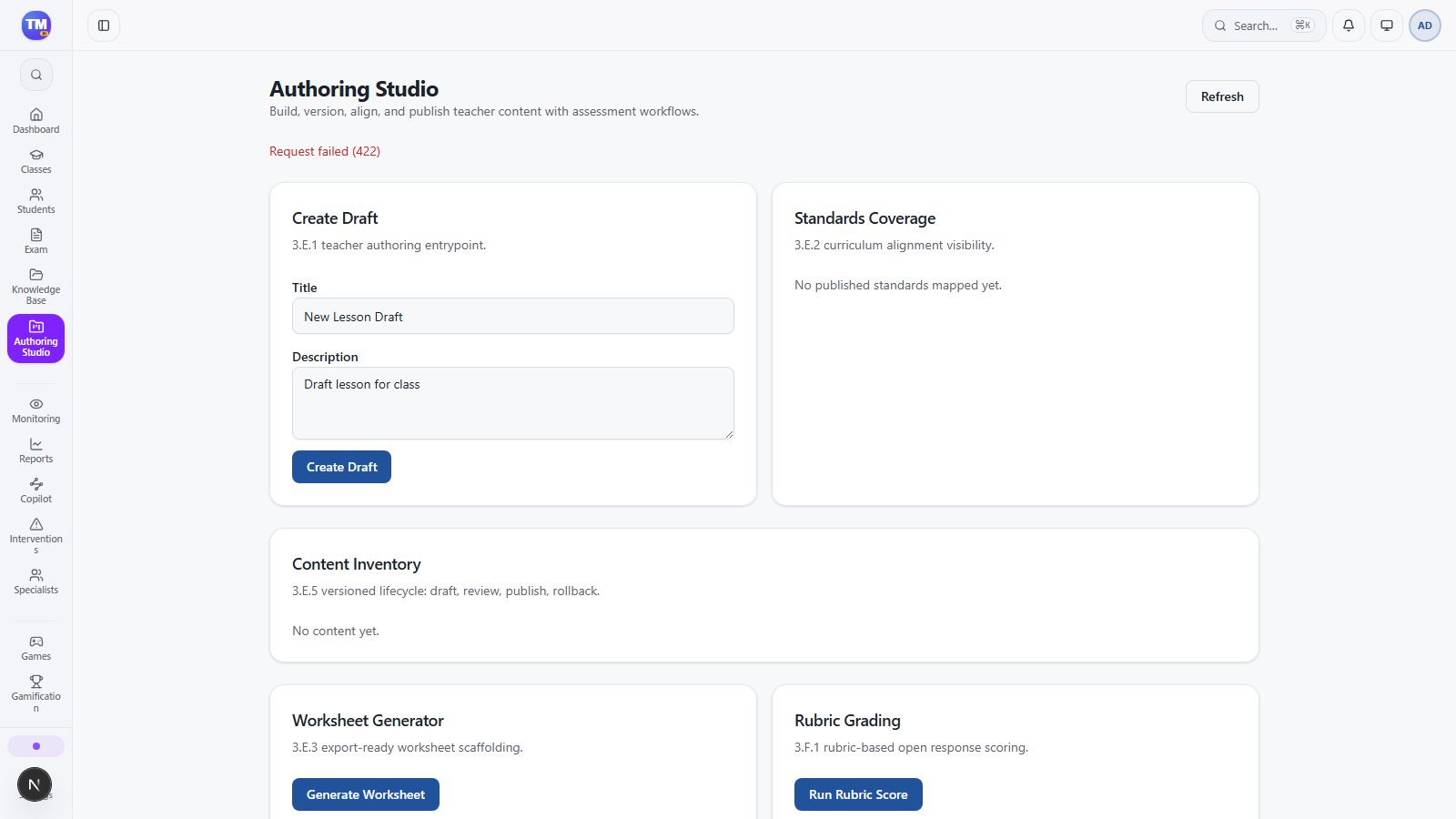
Authoring Studio draft creation, standards coverage, worksheets, and rubrics.
Workflow at a glance
Section titled “Workflow at a glance”