Solve a problem with Math Steps
Write out a solution and get feedback on each move. Open Tools → Math Steps. In this example, you will solve 2x + 5 = 13 and keep a record of the steps.
Watch the tutorial
Section titled “Watch the tutorial”Read the walkthrough transcript
1. Start with one problem
Let's work through an equation, one step at a time. Open Math Steps, type two x plus five equals thirteen, and use the plus button to create a problem session.
2. Write your next move
Before asking for feedback, explain what you would do. Here, we subtract five from both sides. Writing the operation helps you see the reasoning, instead of jumping straight to an answer.
3. Check, then record the step
Choose Check with AI and read the feedback. When you're ready, use Add step to record your working. These are separate actions: one gives feedback, and the other keeps the step in your solution.
4. Finish and verify
Next, divide both sides by two. That gives x equals four. Check it in the original equation: two times four, plus five, equals thirteen. Nice. Now you have a solution you can explain.
Download video · Download captions
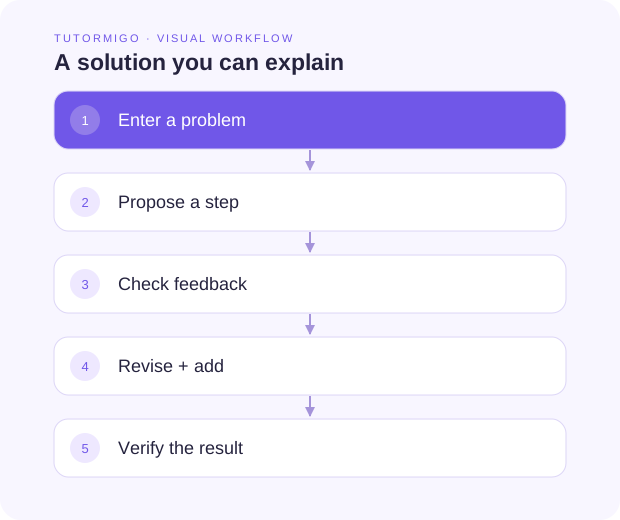
Create the problem
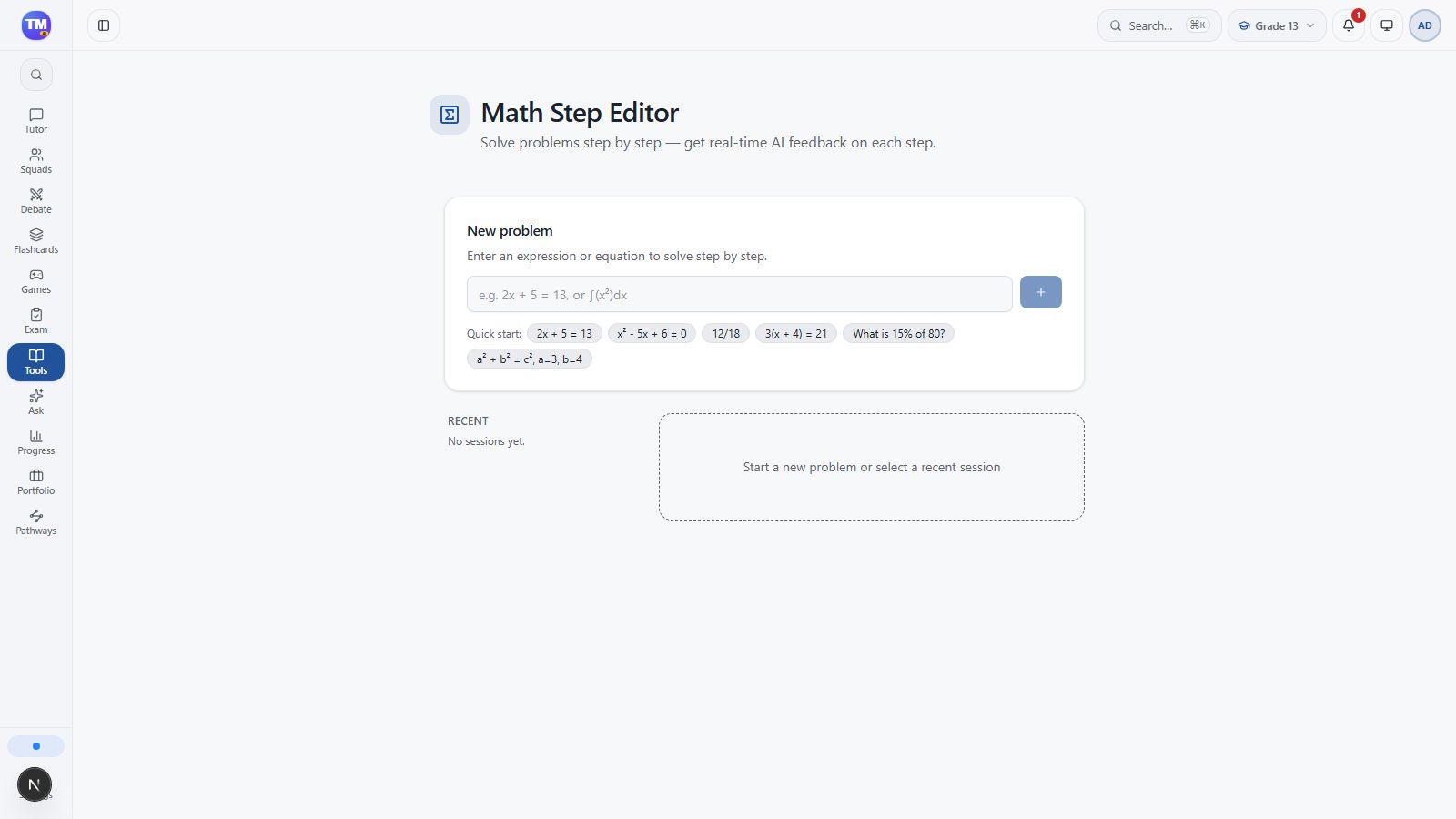
Section titled “Create the problem”Enter 2x + 5 = 13 in the problem field, then select +. This creates a problem session and opens its step editor.
Propose a step
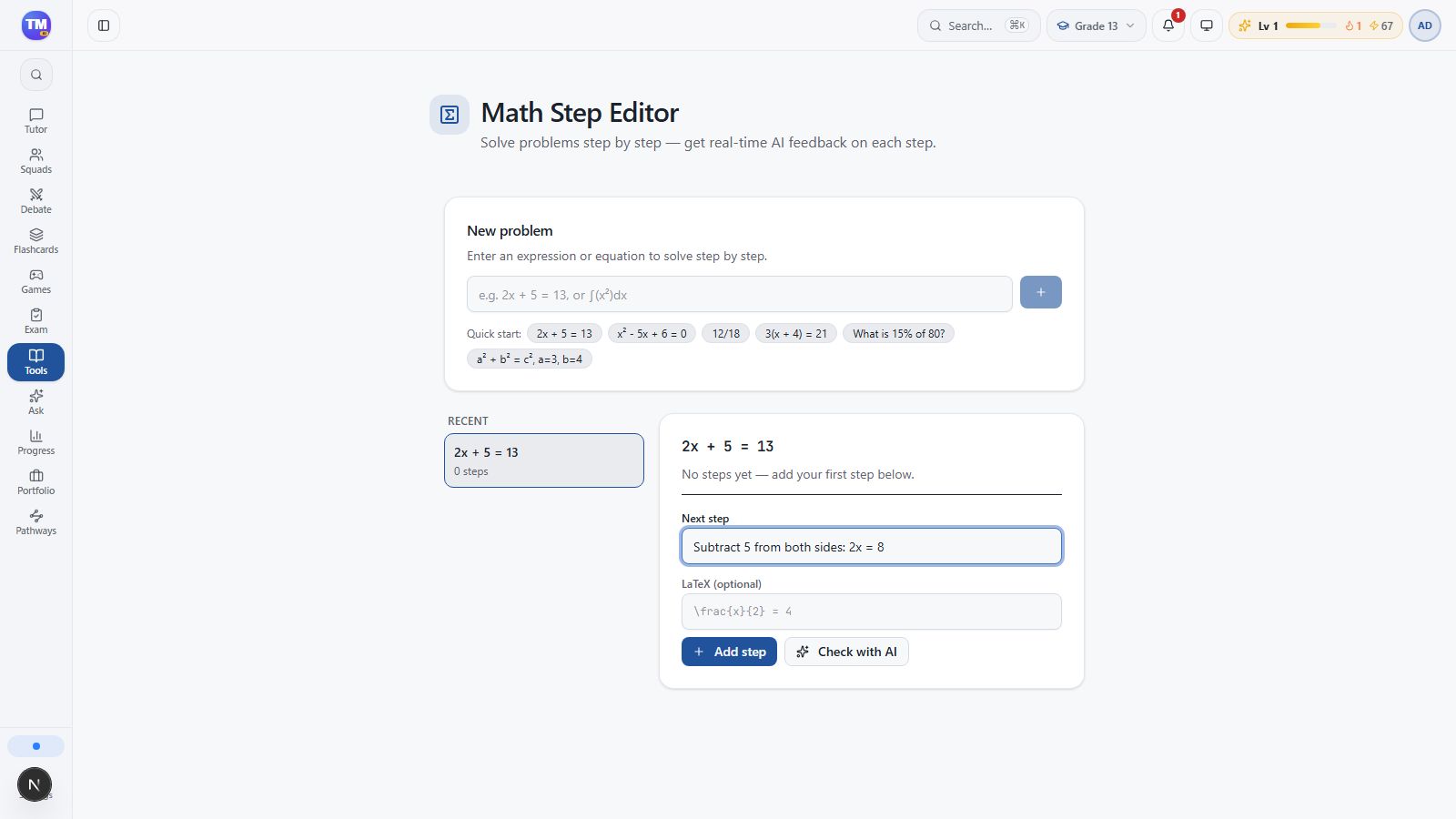
Section titled “Propose a step”In Describe the next step…, enter Subtract 5 from both sides: 2x = 8. Describe the operation rather than entering only a final answer.
Check and keep your working
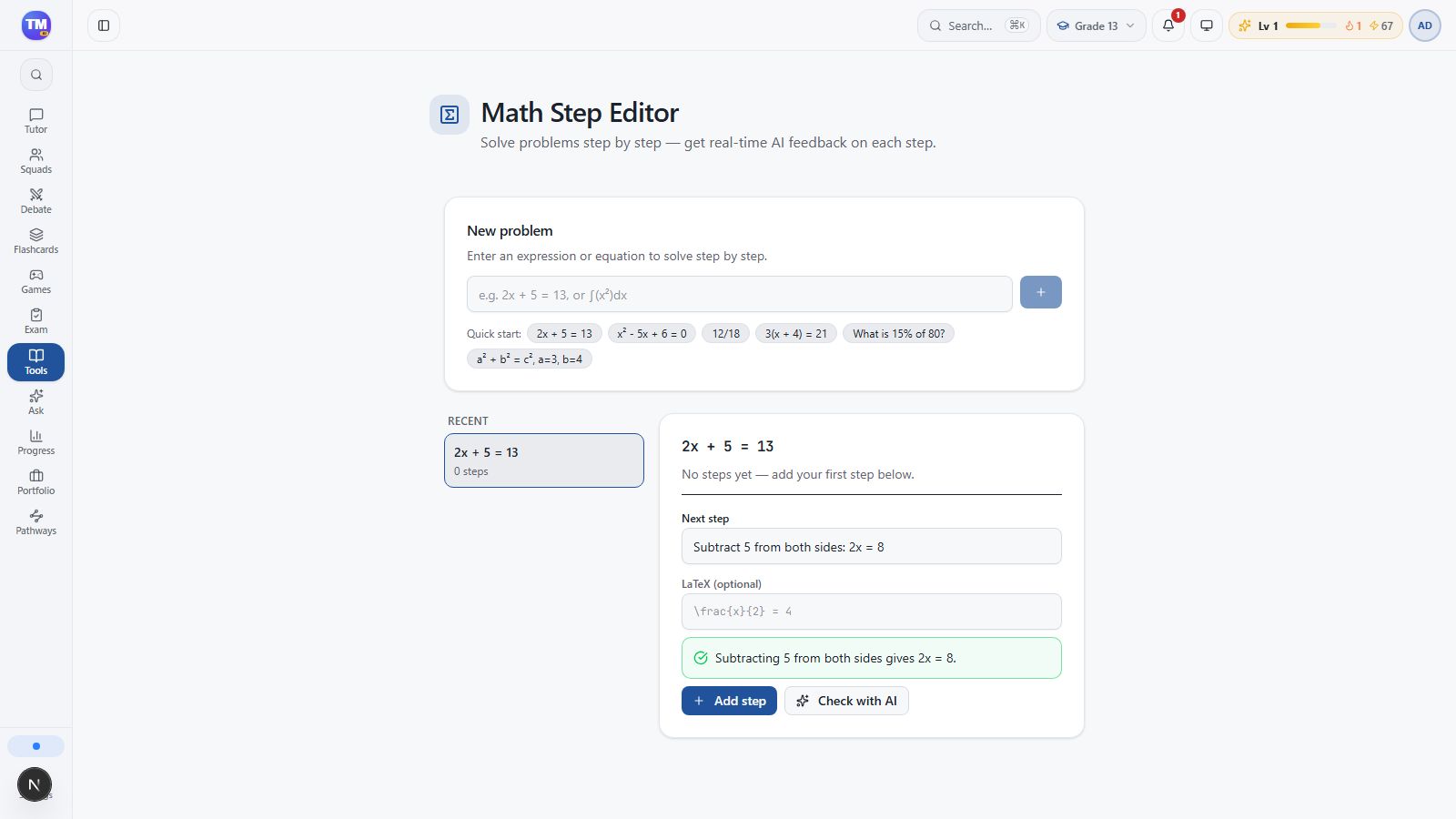
Section titled “Check and keep your working”Select Check with AI and read the feedback. Revise the step if needed, then select Add step to save it in your solution. Checking and adding are separate actions.
Finish and verify
Section titled “Finish and verify”Enter Divide both sides by 2: x = 4. Check: 2*4 + 5 = 13. Check it, then use Add step again. You should now see both steps recorded.
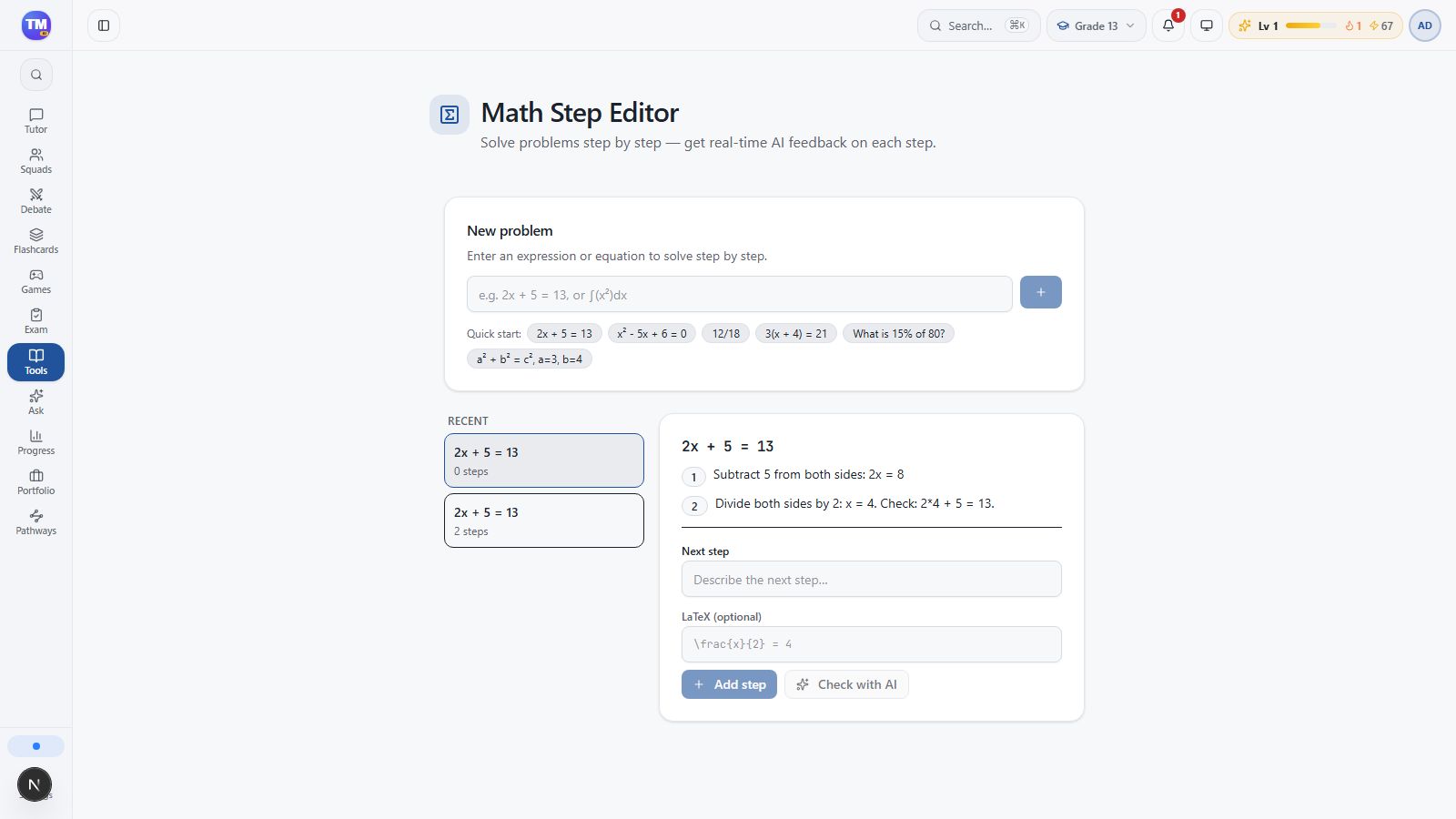
Verify the result yourself: 2 × 4 + 5 = 13. An AI check can be unavailable or mistaken; the substitution is your independent check. If feedback fails, keep your working and retry after checking the displayed error and allowance.
Next: Ask the tutor for help.