Monitor a class and interpret reports
Live Monitoring describes current classroom signals. Reports summarizes class learning measures. Read the scope and timing before comparing them.
Monitor the current class
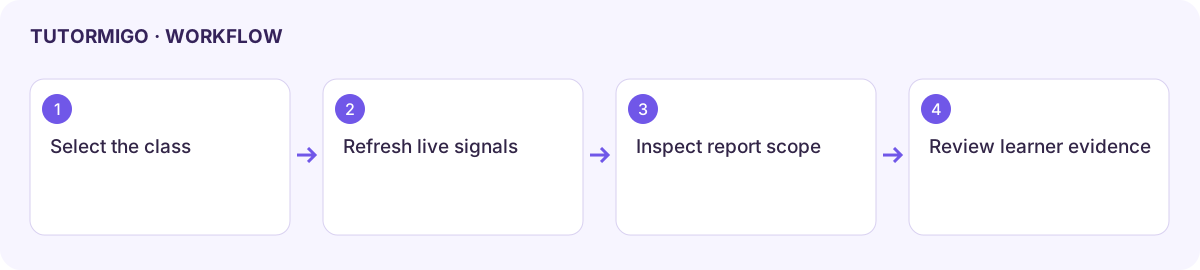
Section titled “Monitor the current class”- Open Monitoring and use Filter by class.
- Refresh through the screen’s control and inspect active learners or sessions.
- Read the displayed topic, duration signal, message count, and struggling-student indicators.
- Open the relevant learner or session evidence through the available links before deciding on support.
- Record a concrete next action through the appropriate intervention or classroom workflow.
Read Reports
Section titled “Read Reports”Select All classes or one class. Compare Total Students, Average Mastery, Total Sessions, Messages Exchanged, quiz accuracy, and struggling-student measures. An average is a starting point: inspect individual topic evidence before deciding the whole class needs the same intervention.
Current limitations: the reviewed report export button is disabled, and Trend charts, Mastery heatmap, PDF export, and Parent share are displayed as Coming Soon. They should not be presented as working report actions in this version.
If the view is empty, check the selected class and recorded learning activity. If numbers differ from a learner’s screen, compare date windows and aggregation levels. Do not assume Monitoring streams a complete private transcript; use the dedicated permitted replay view for that task.
Next: Classroom Control and Copilot and interventions.
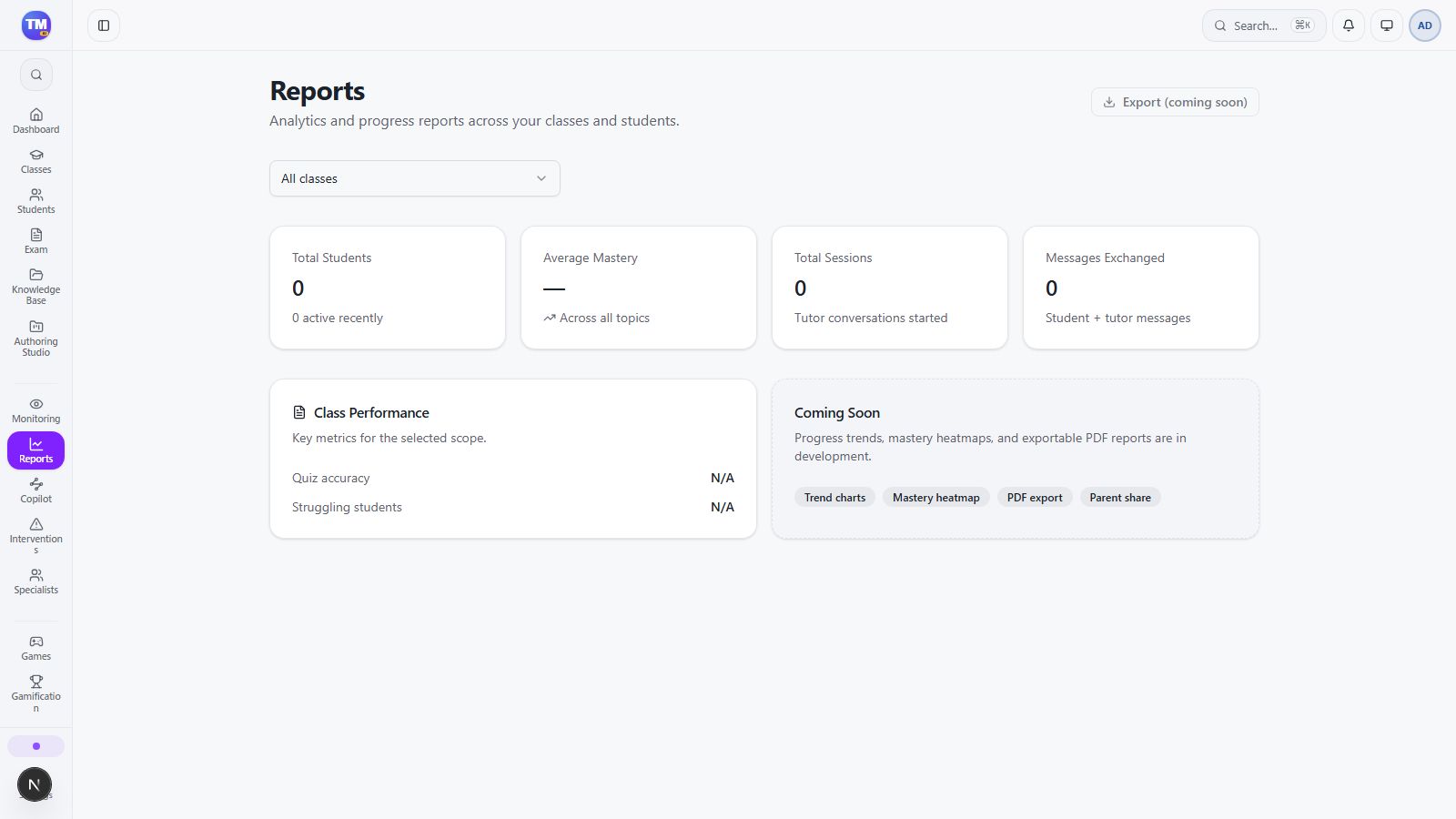
Teacher Reports overview with limited report and export availability.
Workflow at a glance
Section titled “Workflow at a glance”