Find, resume, and organize tutor sessions
The session sidebar keeps your previous learning conversations available. Use it to continue a topic instead of repeatedly starting over.
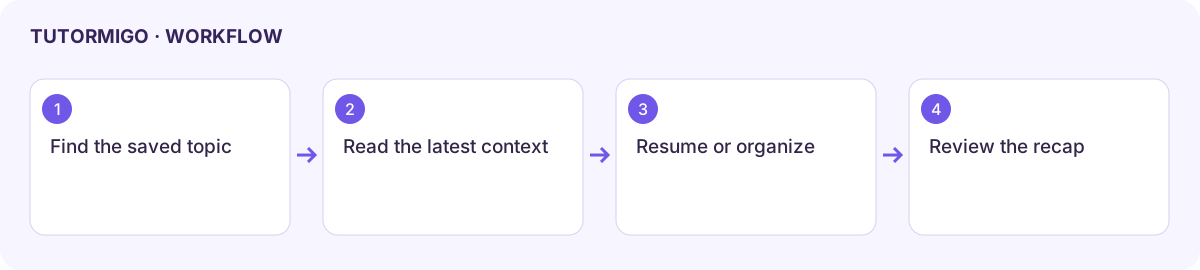
Resume the right session
Section titled “Resume the right session”- Open Tutor and inspect Sessions or the recent-session cards in Study Studio.
- Choose the title and subject that match your work. Check the latest messages before sending a follow-up.
- Use New session for a new subject or a different goal.
- Open Session actions for the available organization controls. Rename a session when supported so it is easier to find.
- Review the session recap and use the supported study-guide download when you need a record of the next steps.
Archive and bulk actions
Section titled “Archive and bulk actions”Use Show archived sessions to find work moved out of the active list. Archiving and deleting have different effects; read the confirmation for the exact action offered. Use Select sessions for bulk action carefully and check the selected titles before confirming.
Collapsing the session sidebar changes the layout rather than removing your work. If a session seems missing, check archived items, the signed-in account, and the displayed subject or search filters before creating a replacement.
For a generated artifact, open the available Canvas view and return to its originating session when you need the instructions that produced it. A recap describes learning outcomes; it is not a substitute for checking the complete conversation when details matter.
Next: session recaps and Study Capture and handoff.
Workflow at a glance
Section titled “Workflow at a glance”