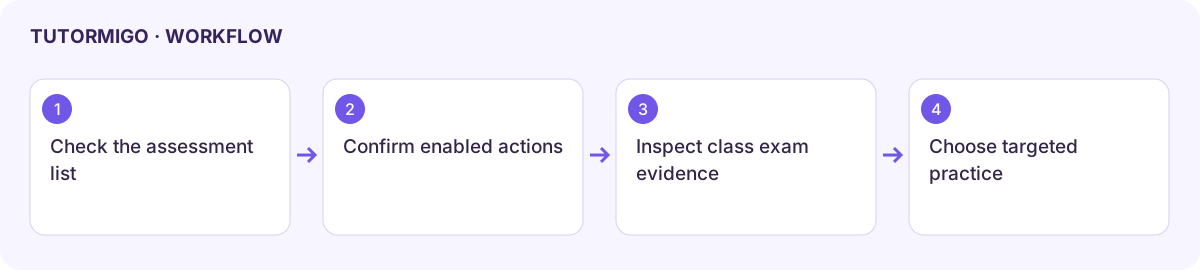
Review assessments and class exam preparation
The teacher workspace has both an Assessments list and Exam Prep tracking. Use the actual enabled controls in each screen; these are different surfaces.
Inspect Assessments
Section titled “Inspect Assessments”- Open Assessments and read the available assignment or assessment records.
- Check each title, class, status, and any results shown before interpreting completion.
- Open the detail or associated resource when the screen provides a link.
Current limitation: the reviewed create assessment button is disabled. This screen does not currently provide a working creation procedure. An empty list says no assessments are available; it does not enable creation. Use supported authoring or classroom resource workflows for the tasks they actually offer.
Review Exam Prep
Section titled “Review Exam Prep”Open Exam Prep, select the intended class or learner through the dashboard’s controls, and inspect enrollment, attempts, progress, and available recommendations. Compare the same exam and time window. Use a learner’s completed practice or mock evidence to decide the next topic; an unfinished attempt should not be treated as a scored test.
Review any available assignment action before applying it to a class. If the dashboard is empty, check class membership and exam enrollment first. Keep an error and the relevant record if data fails to load rather than assigning a duplicate test immediately.
For the student experience, see exam setup, mock tests, and IELTS.
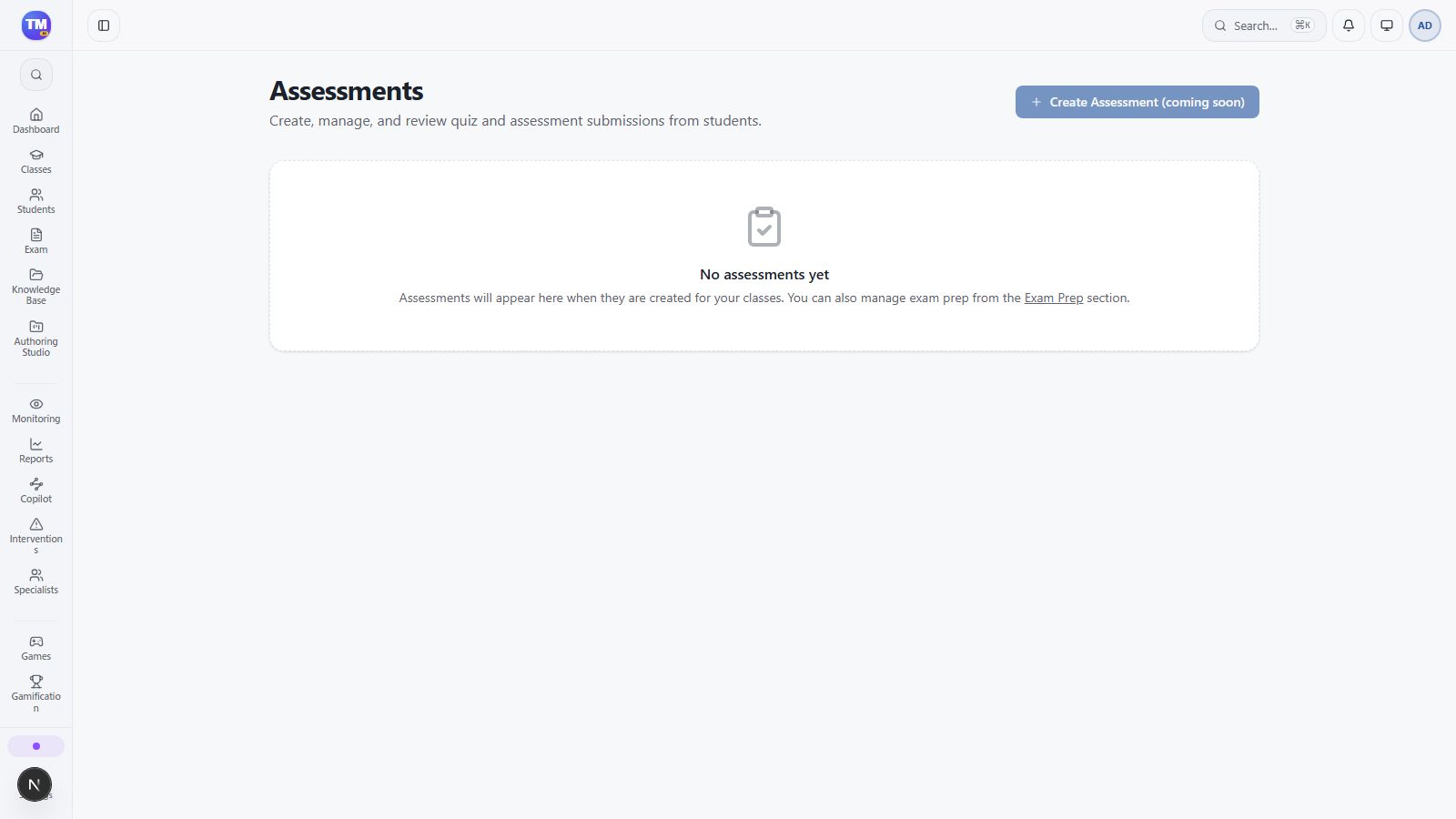
Assessments empty state with the disabled creation control.
Workflow at a glance
Section titled “Workflow at a glance”