Find prompt ideas and revisit your creations
Use What can I ask? when you need an example request. Use My Creations and the available likes gallery to return to saved visual work.
Try and adapt a prompt
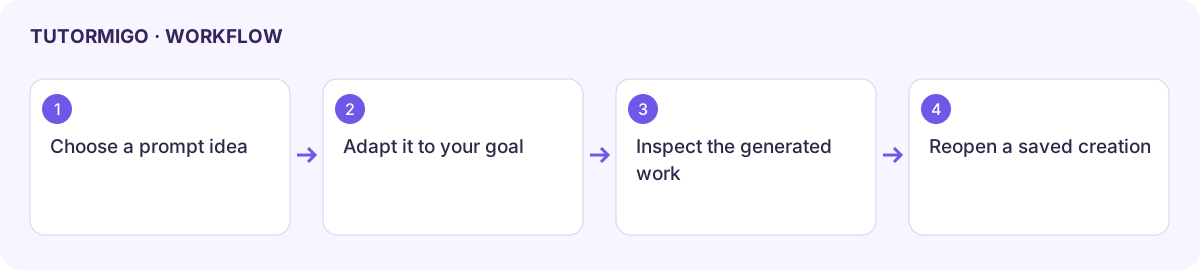
Section titled “Try and adapt a prompt”- Open What can I ask? and browse the example prompts by subject or the available category filters.
- Choose a prompt relevant to your topic. It opens Tutor with that request prepared.
- Edit the topic, grade, and goal so the request matches what you are learning.
- Add your own attempt or the point that confused you, then start the session.
- Check the answer or generated artifact and ask a focused follow-up.
A useful request states what you are learning, what you have tried, and what kind of help you want. “Show me why my second algebra step is wrong” is more useful than “Do my work.”
Reopen visual work
Section titled “Reopen visual work”Open My Creations. Choose All, Images, or 3D Scenes, and search by title. Open the saved result to inspect it again. The available How to drawer explains 3D controls; try the viewer controls rather than relying on a thumbnail.
An empty gallery means no matching saved creation is available in the current scope. Generate a supported visual in a tutoring session, then check the gallery. Use the likes gallery for items you have saved through the available like action; a like does not mean the artifact is publicly shared.
For generated images and scenes, verify labels and subject accuracy. A polished visual can still contain a learning error.
Workflow at a glance
Section titled “Workflow at a glance”