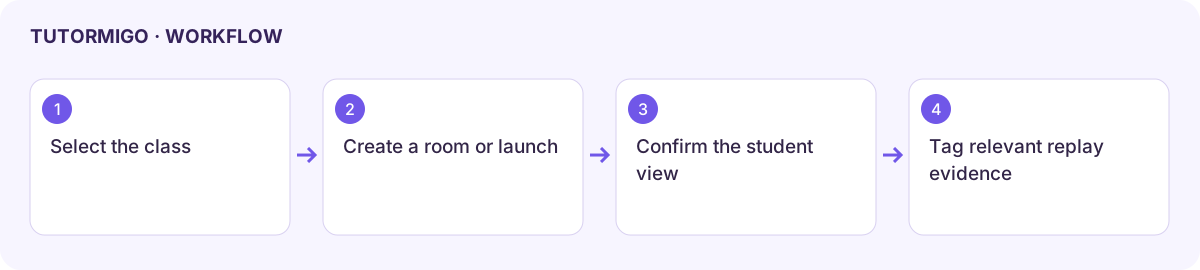
Create a classroom room, launch, or replay tag
Classroom Control combines class monitoring, collaboration rooms, assignment launches, and replay intervention tags. It operates within the selected teacher class.
Choose the class and inspect activity
Section titled “Choose the class and inspect activity”Select the correct class and refresh its data. Read Live Monitor for students, active sessions, confusion alerts, learners needing resume, live rooms, and active launches. Confirm actual learner evidence before taking a support action.
Create a collaboration room
Section titled “Create a collaboration room”- Enter a Room title under Collaboration Rooms.
- Choose Whiteboard room or Small-group room and review the available membership and follow settings.
- Create the room and check its saved entry.
- Confirm the intended students can open it from their classroom view before beginning the activity.
Launch an assignment
Section titled “Launch an assignment”Under Assignment Launches, choose Quiz, Game, Audio lesson, Code challenge, Exam prep, or Whiteboard task. Select the relevant resource where required, add an optional title override and teacher note, then launch. Check the class and resource before confirming. Inspect the new launch entry and the student-facing activity.
Tag replay evidence
Section titled “Tag replay evidence”Choose a session in Replay Intervention Tags and inspect its messages. Select Intervention, Highlight, Follow-up, or Celebration, choose severity, and write a specific note. Save the tag and confirm it appears in the replay’s list. A tag records a review decision; it does not automatically prove a follow-up assignment was completed.
If the class, resource, or session list is empty, check enrollment and current activity first. Do not create duplicate launches merely because a learner has not opened the first one.
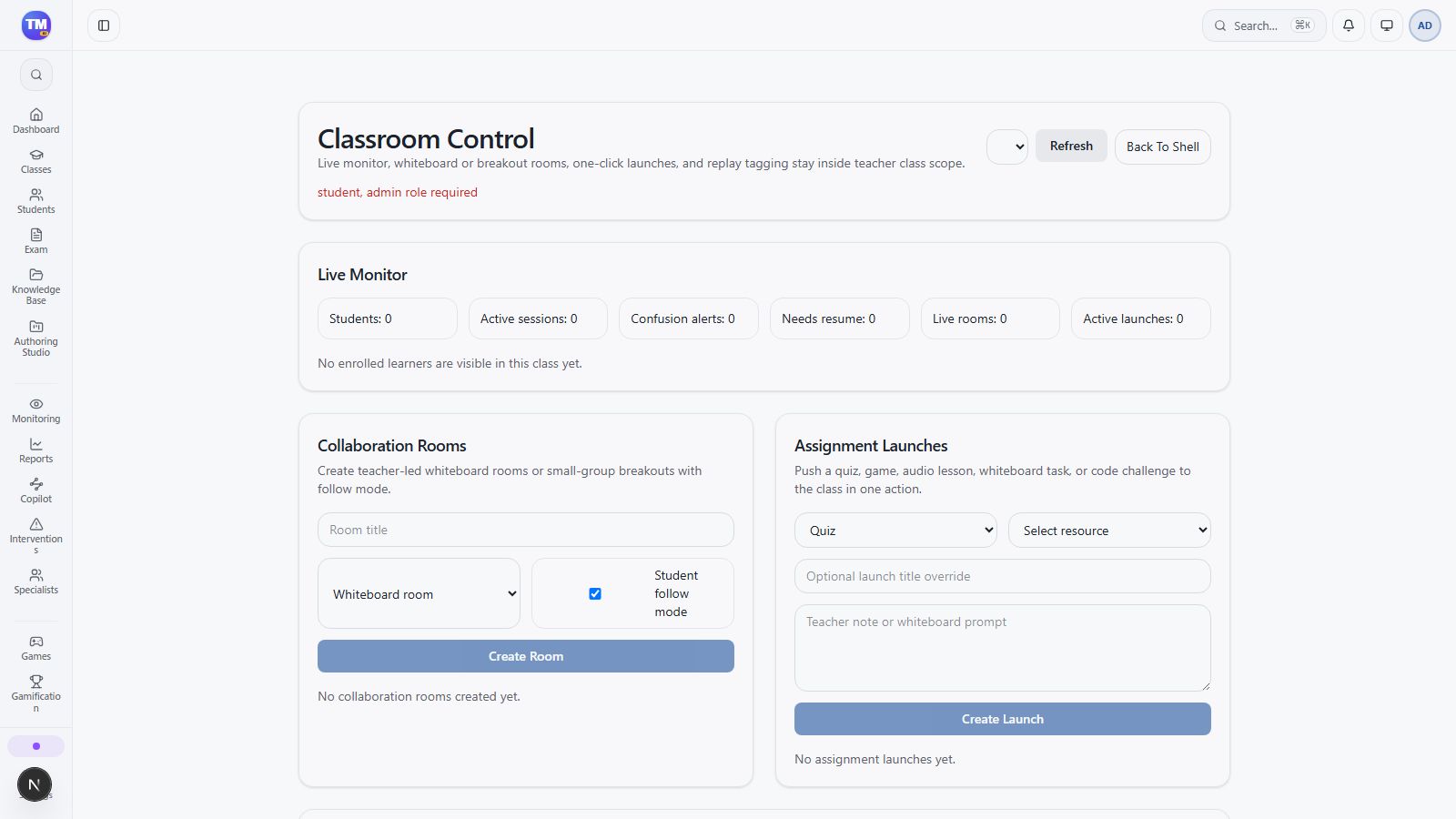
Classroom Control monitor, room, launch, and replay-tag areas.
Workflow at a glance
Section titled “Workflow at a glance”