
For schools and organizations2 min read
Accept a school invite
When your school adds you, you get an email invite. It works for teachers, staff, faculty and school admins. The invite links your TutorMigo account to the school and gives you the role your school admin chose.
Accept the invite
Section titled “Accept the invite”- Open the email and select the invite link. It opens Join your school.
- Sign in with the same email address the invite was sent to.
- Check the organization name and your role on the page.
- Select Accept invite.
TutorMigo takes you to the right place: school admins go to the school portal, and teachers go to the teacher workspace.
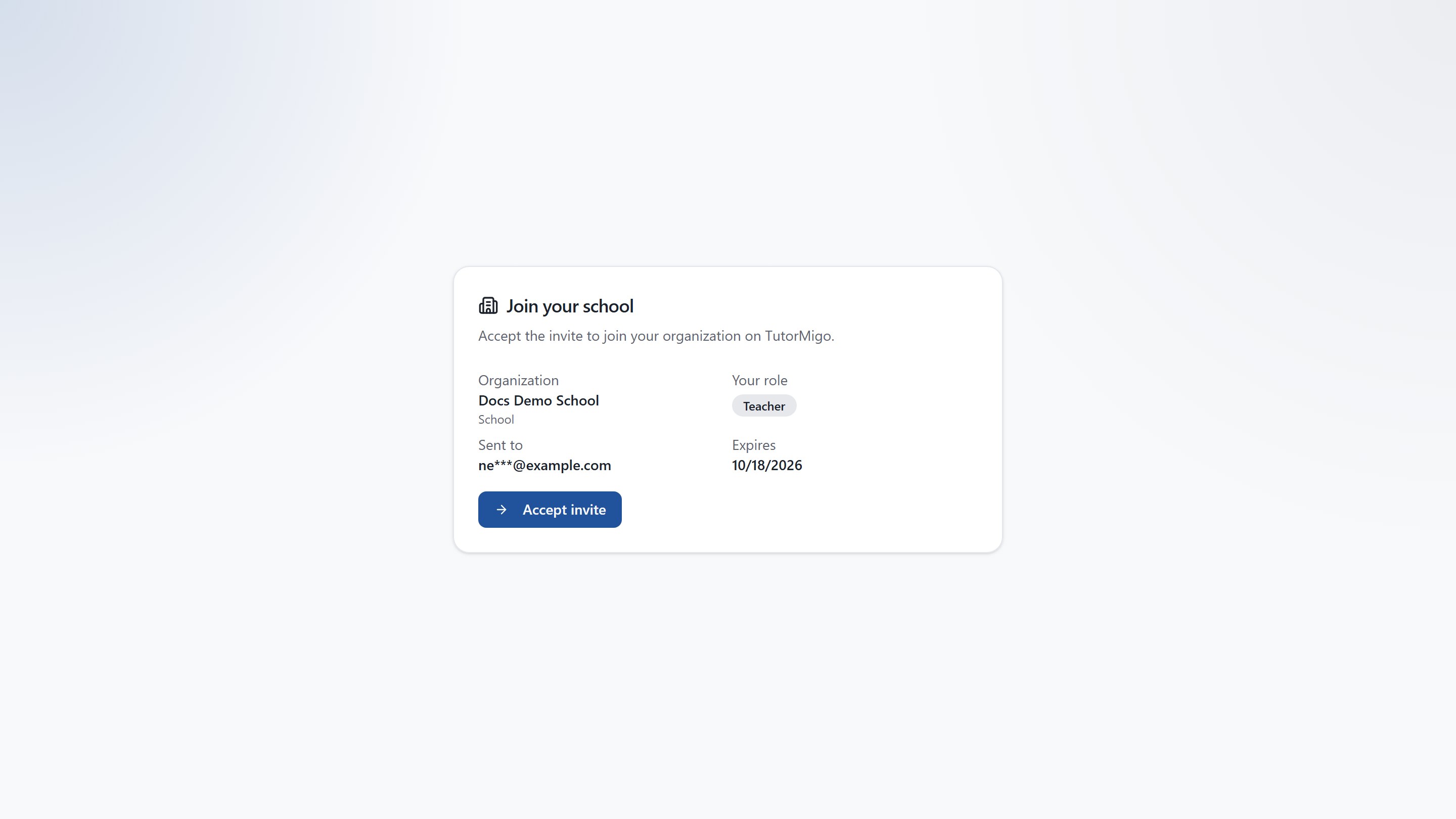
The invite page shows the school, your role, the address it was sent to and when it expires.
If the invite does not work
Section titled “If the invite does not work”| Message | What to do |
|---|---|
| This invite was sent to a different email address | Sign out, then sign in with the account for the address in the email. Invites can’t be used from another account, so a forwarded link is safe. |
| This invite has expired | Invites last seven days. Ask your school admin to send a new one. |
| This invite was replaced or cancelled | A newer invite was sent. Use the latest email. |
| This invite has already been used | You are already a member. Open My school in the teacher workspace. |
Find your school later
Section titled “Find your school later”Open My school in the teacher workspace, under Account. It lists every school you belong to and your roles. School admins see a Manage link.