
For schools and organizations2 min read
Run your school from the school portal
School admins manage the whole school from My school → Manage. The portal has five tabs. It works the same way on a phone, a tablet and a computer.
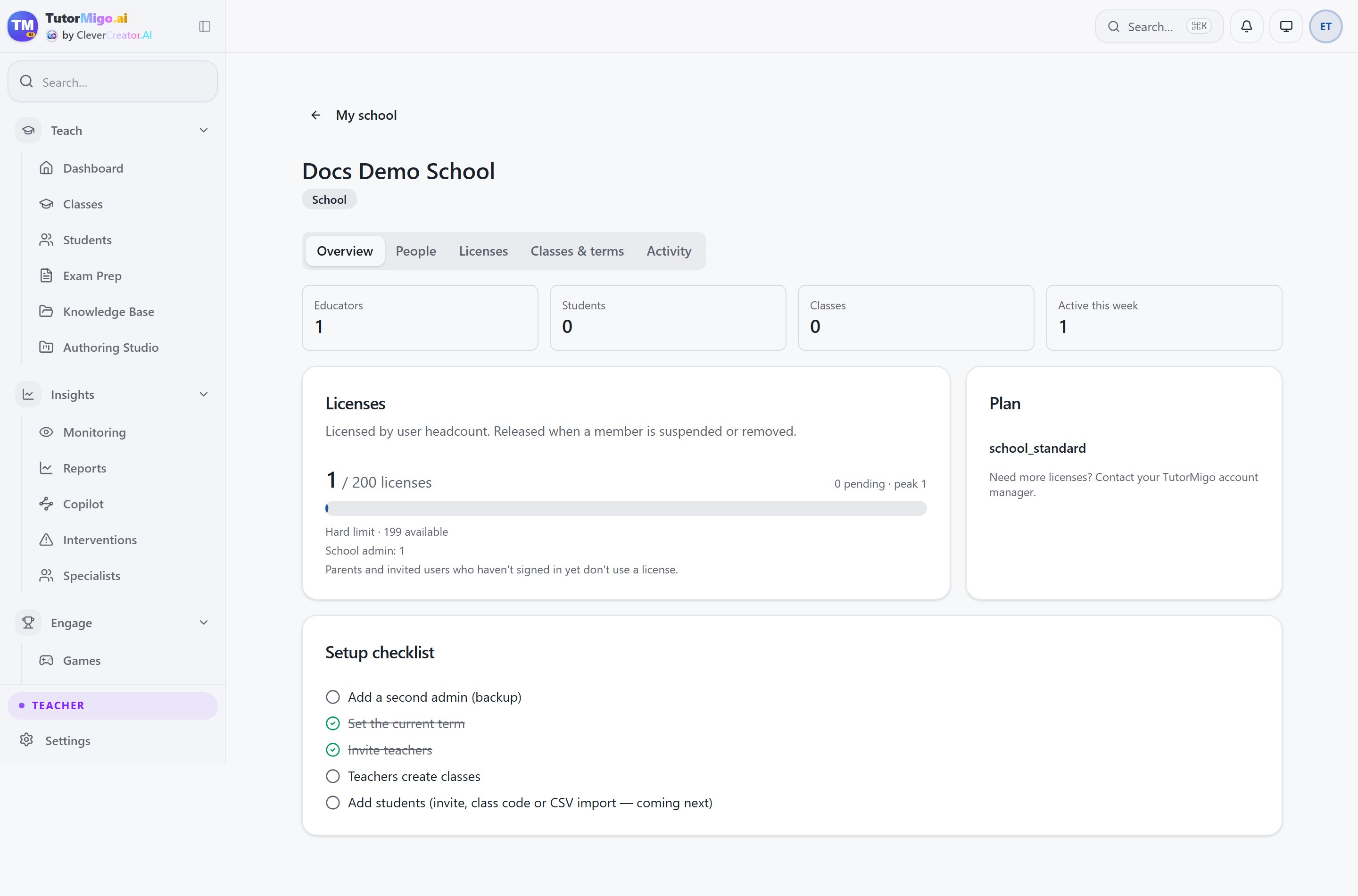
Overview: headline numbers, license usage, your plan and a setup checklist.
The five tabs
Section titled “The five tabs”| Tab | Use it to |
|---|---|
| Overview | See educators, students, classes and who was active this week. Check license usage and work through the setup checklist |
| People | Invite people, see pending invites, change roles and suspend or reactivate members |
| Licenses | See who holds a license and release licenses you no longer need. See Manage licenses |
| Classes & terms | See every class in the school with its teacher, term and size. Add the next term |
| Activity | Review who changed what: invites, role changes, license releases and term changes |
Set up your school
Section titled “Set up your school”- Add a second school admin so the school is never locked out.
- Check the current term. One is created for the current school year. Add the next term from Classes & terms.
- Invite teachers from People.
- Teachers create classes and add students with class codes, email invites or PIN login cards for younger learners.
The checklist on Overview ticks each step as it is done.
If the portal is read-only
Section titled “If the portal is read-only”When a school’s agreement is suspended or ends, the portal stays visible but changes are switched off. A banner says so. Contact your TutorMigo account manager to reactivate it.
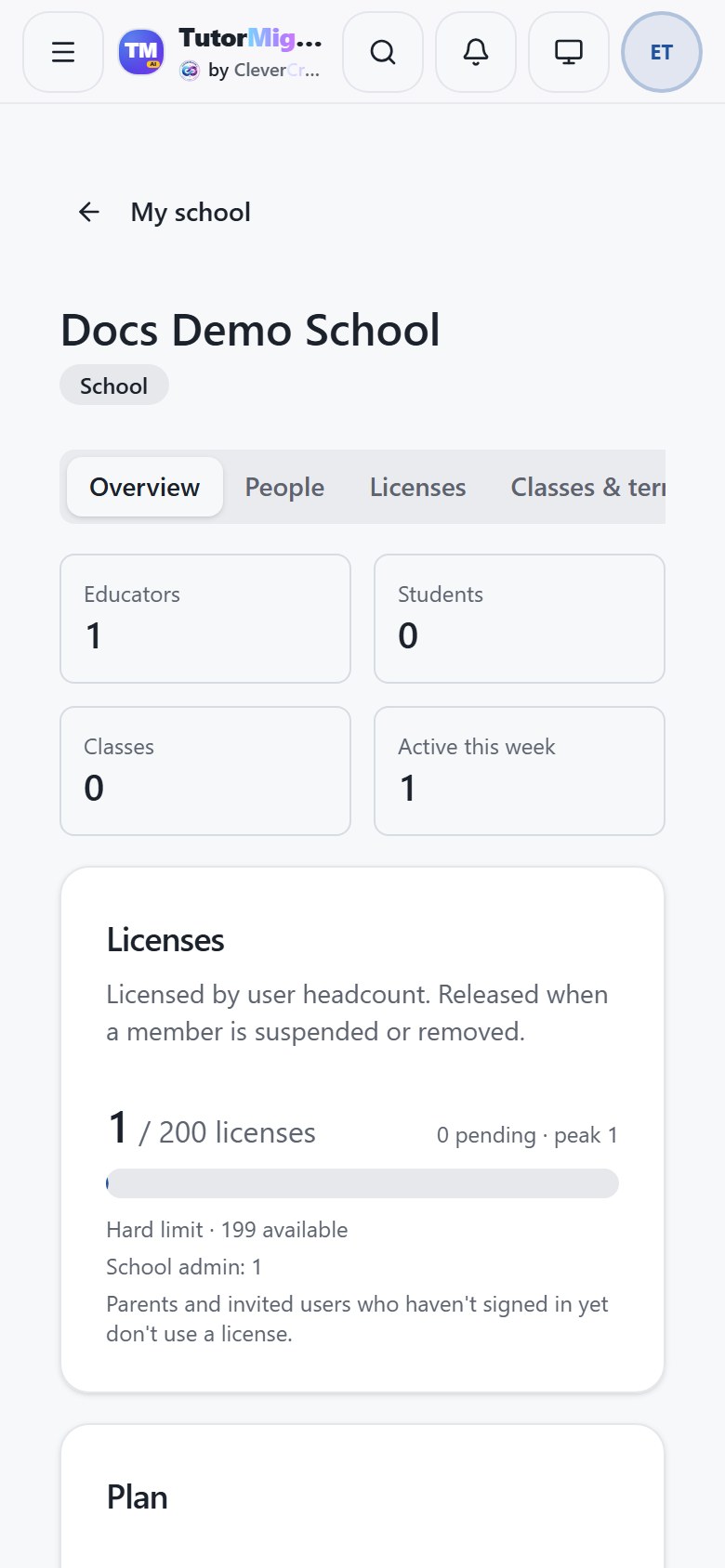
On a phone the tabs scroll sideways and the tables become simple lists.