
For schools and organizations2 min read
Manage licenses
Your school is licensed by headcount. Open My school → Manage → Licenses to see usage and who holds a license.
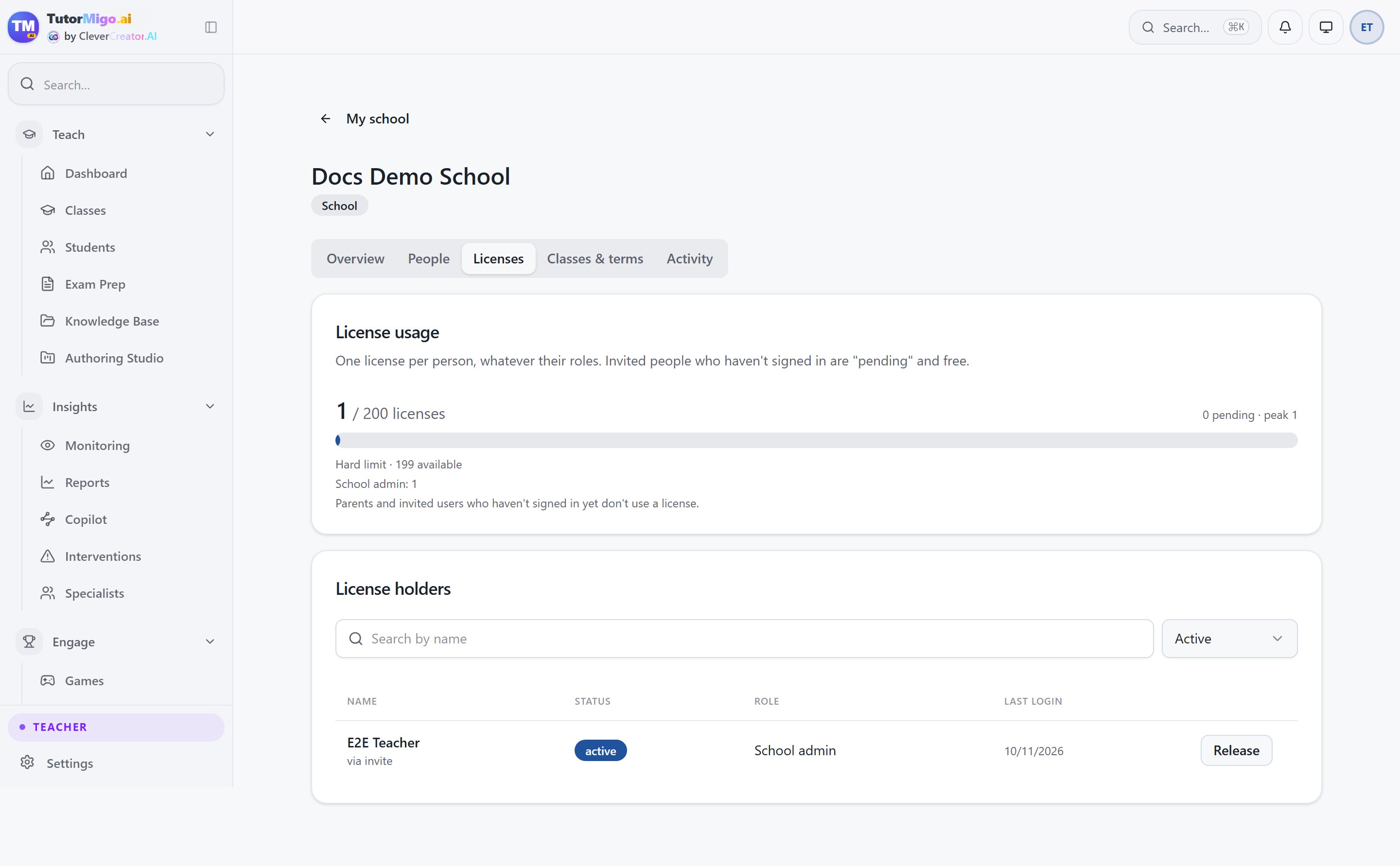
Licenses: the meter shows used / purchased, pending invites and this term’s peak.
Read the meter
Section titled “Read the meter”| Item | Meaning |
|---|---|
| Used / purchased | Active people holding a license, against your licensed headcount |
| Pending | Invited people who haven’t signed in yet. They do not use a license |
| Peak | The highest number of licenses in use this term |
| By role | How many students, teachers, staff and school admins hold licenses |
The number turns amber at 80% and red when you reach your headcount.
Who uses a license
Section titled “Who uses a license”- Yes: students, teachers, instructors, tutors, TAs, staff and school admins.
- No: parents, people who have not signed in yet, and suspended or removed members.
- One per person: someone who is both a teacher and a school admin still uses one license.
Free up licenses
Section titled “Free up licenses”Select Release next to a license holder. This suspends their school membership and frees the license at once. You can reactivate them later from People if a license is free.
When you run out
Section titled “When you run out”What happens at your headcount depends on your agreement:
- Hard limit: new people stay pending until a license is free, and they see a message asking them to contact their school admin.
- Overage allowed: people can still join, and the extra licenses are settled at renewal.
To add licenses, contact your TutorMigo account manager.